Body Proxy
A Body proxy is a placeholder for content from your topics. If you manually enter additional content above the Body proxy bar in the template page, the content will display as a header (above the topic body) in the output. If you enter the content below the Body proxy bar in the template page, the content will display as a footer (below the topic body) in the output.
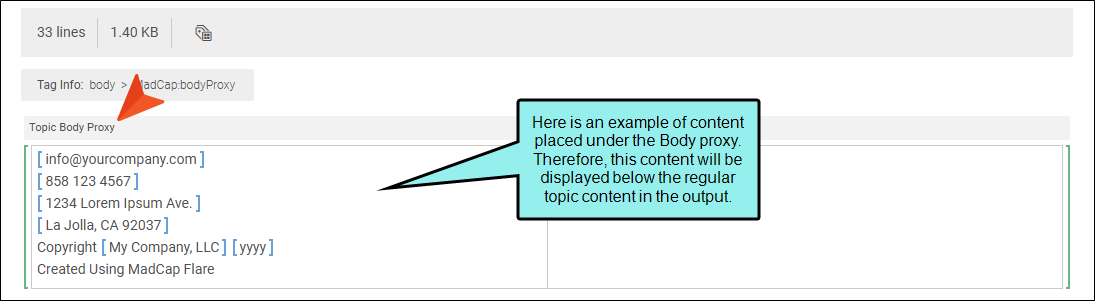
In most situations you probably don't need to insert a body proxy, because it is usually already included for you. However, if necessary, you can insert a Body proxy into a template page that doesn't already have one.
[Menu Proxy — Headings — Online — Depth3 ]
Permission Required?
Editing content and project files is an activity available to users with the Author status. By default, users with Author status have the following permissions set:
-

If this is deselected, then viewing files in a read-only mode is allowed. On the left side of the page, the Files vertical three-dot menu is not available.
-

If this is deselected, the XHTML in the Code view is read-only.
Editing code is regarded as a capability for an advanced user. If not done properly, the code can become malformed quickly. Administrators can prevent users from editing the code by deselecting the Edit Code permission.
For more information about permissions, see Setting User Permissions or Setting Team Permissions.
How to Insert a Body Proxy
-
Open a project, and select the Workspace tab at the top.
-
On the left, navigate to a template page file, which is usually located under Resources > TemplatePages. The file contents display on the right.
-
Place your cursor where you want to insert the proxy.
-
In the toolbar, depending on the size of your screen, click
 and choose Body Proxy, or select
  and choose Body Proxy.
 -
(Optional) If you want to select a specific style class of the MadCap:bodyProxy style to control its look and feel, you can enter it in the Stylesheet class field. If you do not enter a style class, Flare Online will use the main MadCap:bodyProxy style automatically. See the Flare Desktop Help system.
-
Click Insert. The proxy is added, represented by a gray rectangle.

