Opening the Build Log
When you build (or publish) a target, a log is automatically created. Flare Online features live-streaming logs, easy log viewing, and reliable messaging for troubleshooting issues. Build functionality prevents process notifications and the build queue from stacking up, and the output files and build log are retained for each build.
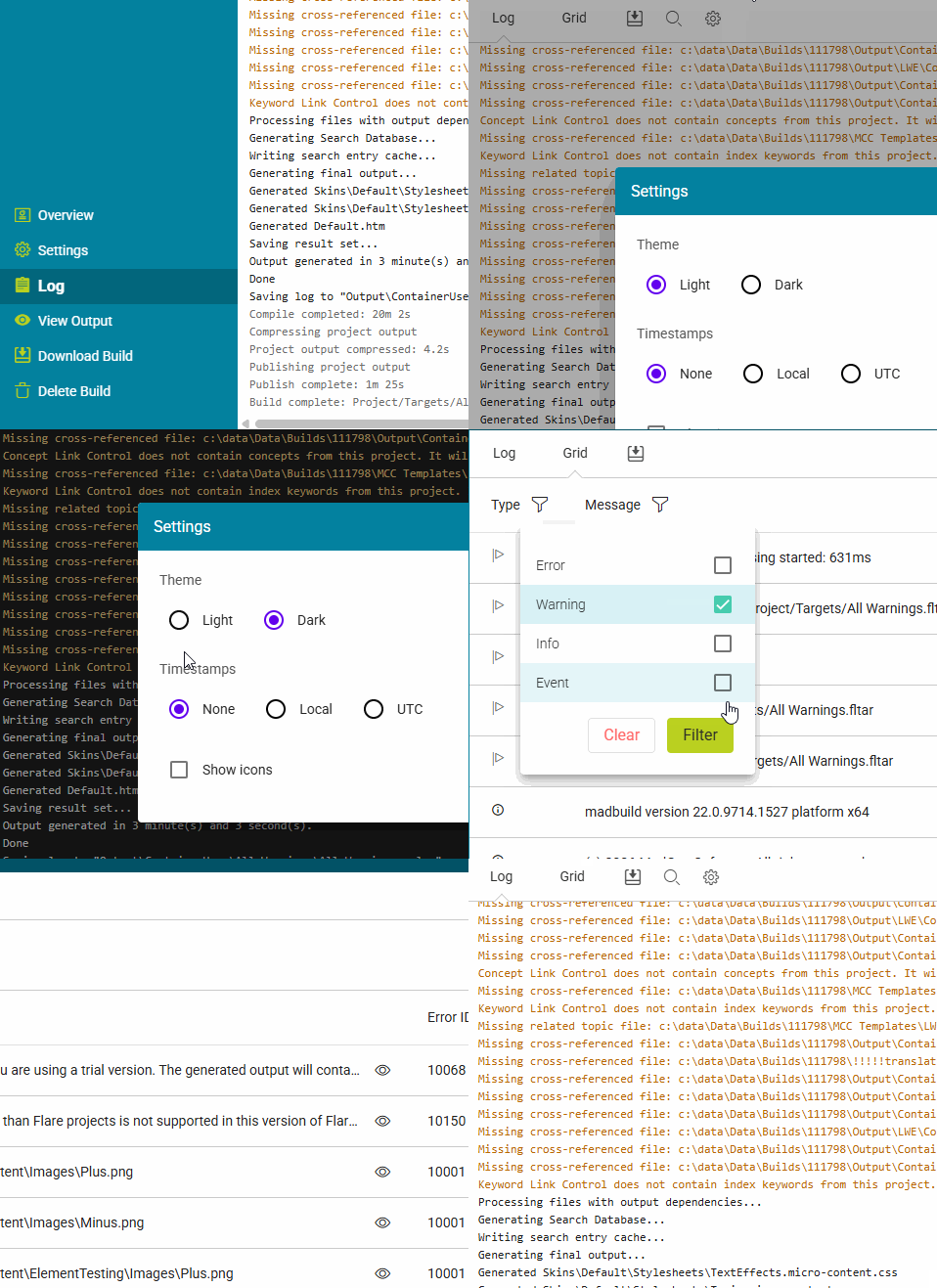
[Menu Proxy — Headings — Online — Depth3 ]
Permission Required?
To open the project in Flare Online and access the Build Profile dialog, you must be associated with the project. However, depending on your permissions, you might see different section links on the left side of the dialog.
To view generated output and download a log, you would need the following permission:

How to Open a Build Log
- Select Projects on the left side of the interface, then click a project name to open it.
- At the top of the page, click Output.
- In the grid, click
 to the left of the build with the log you want to view. From the drop-down menu select View Log. The Build Log dialog opens.
Viewing the Log File
The log file notes log info, events (messages), warnings, and errors. The Log top menu includes Log tab, Grid tab, Download Log button, Find button (Log view only), or Settings button (Log view only). You can choose to see the file using the Log or Grid view, or click Download Log  to view it in a text editor on your computer.
Log View
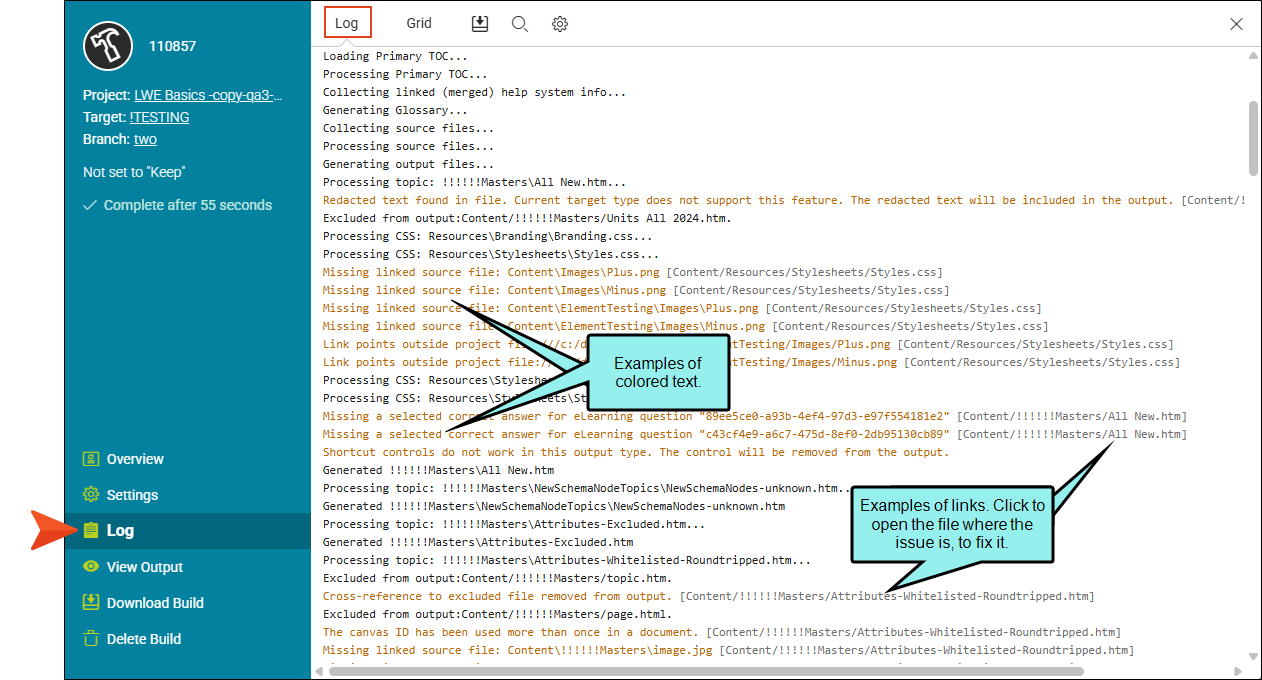
The Log view shows all the running information about the build process. Among regular line text, you might see line text in different colors to highlight information such as warnings and errors, or clickable links.
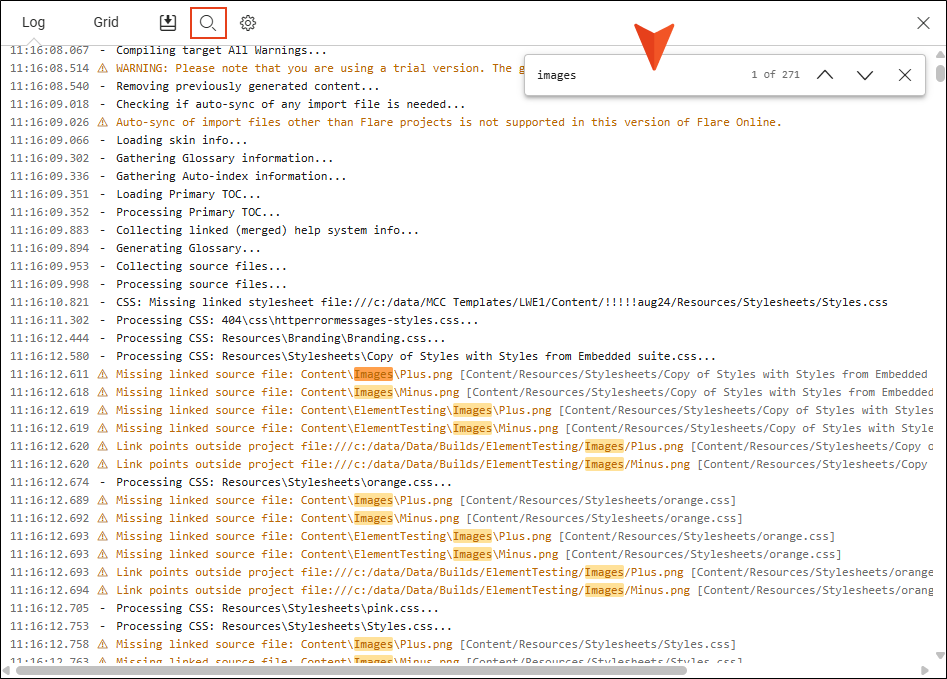
Click the Find button (or press CTRL+F) to quickly search the entire log file for a keyword. This is helpful to identify items in a big block of text. (Alternatively, you can download the log file and search for an item in a text editor.)
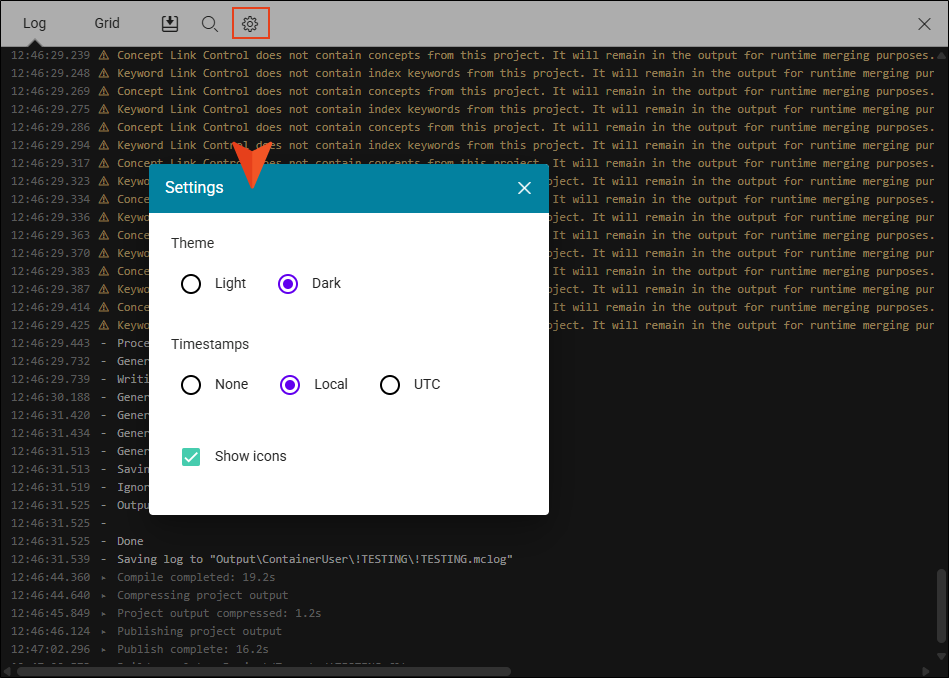
Click the Settings button to customize the interface with basic settings such as choosing a light or dark theme, timestamps, or showing icons.
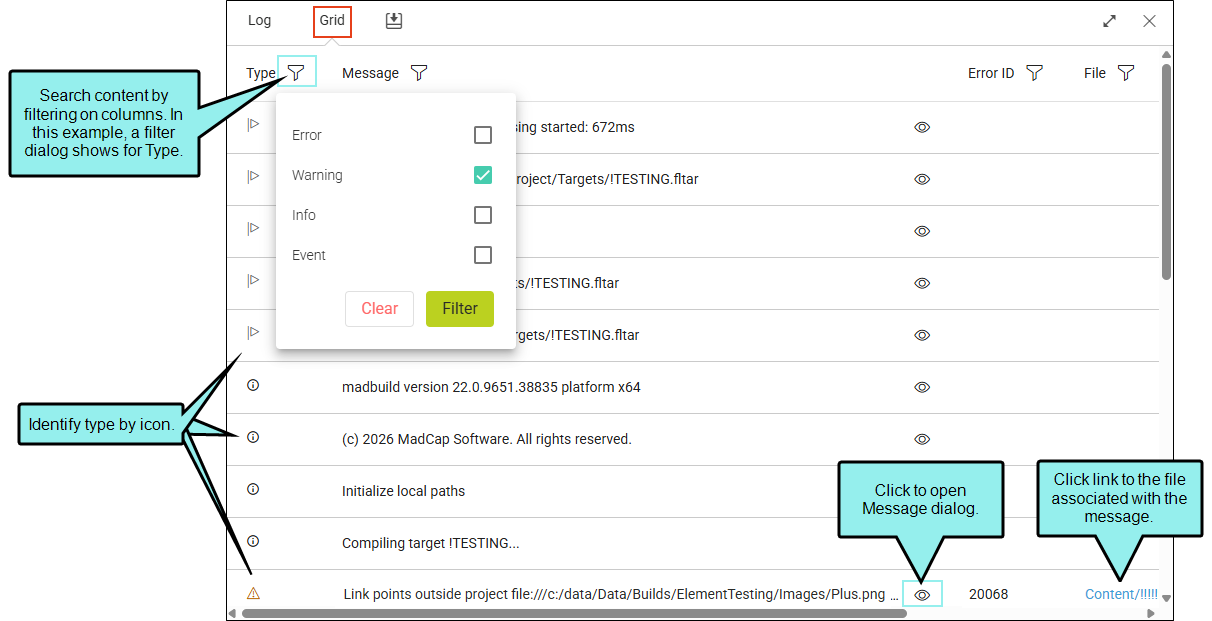
Grid View
The Grid view allows you to filter the log to quickly find if there is anything wrong with the output. For example, you can filter on the following type:
-
Error These cause the build not to compile completely.
-
Warning Even though the build compiles correctly, a warning shows issues in the output that you need to fix (e.g., broken links, or missing images), or suggestions for improving your output (e.g., accessibility settings).
-
Info These are high-level messages about the build as the output is generated.
-
Event These are crucial milestones of the build.
Each column in the grid supports filtering. So, you can search for messages not only by type, but also by the message itself, error ID, file, or subsystem.
Example You build output for your project, and you decide to open the log file. As you scroll through the Log view, you notice colored text and icons (this can indicate issues with a build).
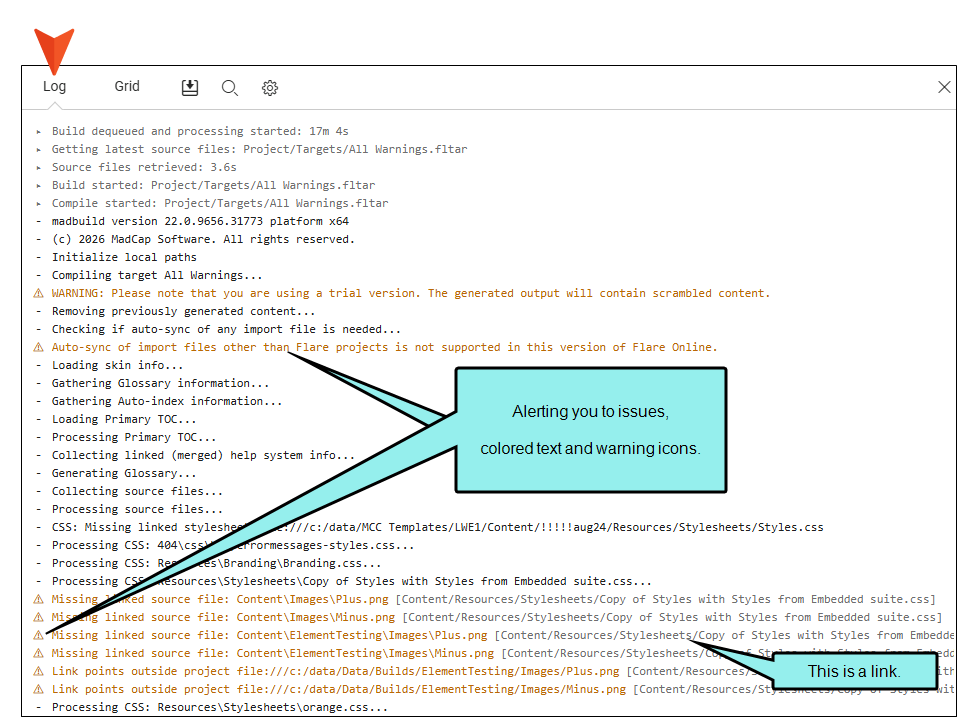
Notice some messages provide a link for you to click. The links conveniently take you directly to where the issue is, to troubleshoot and fix in the project.
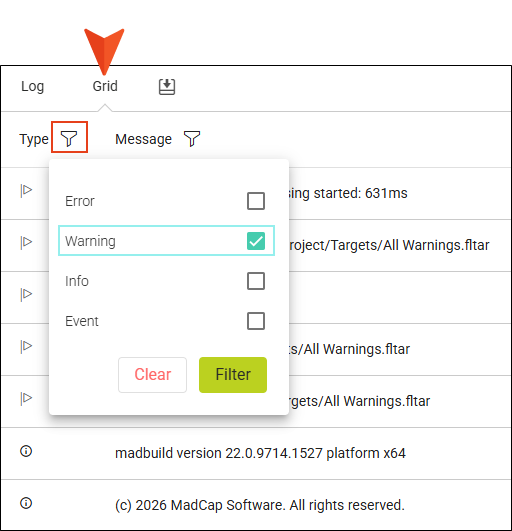
You are interested in tracking down warning items. So you decide to switch to the Grid view. You first click the Filter icon, and select the Warning type.
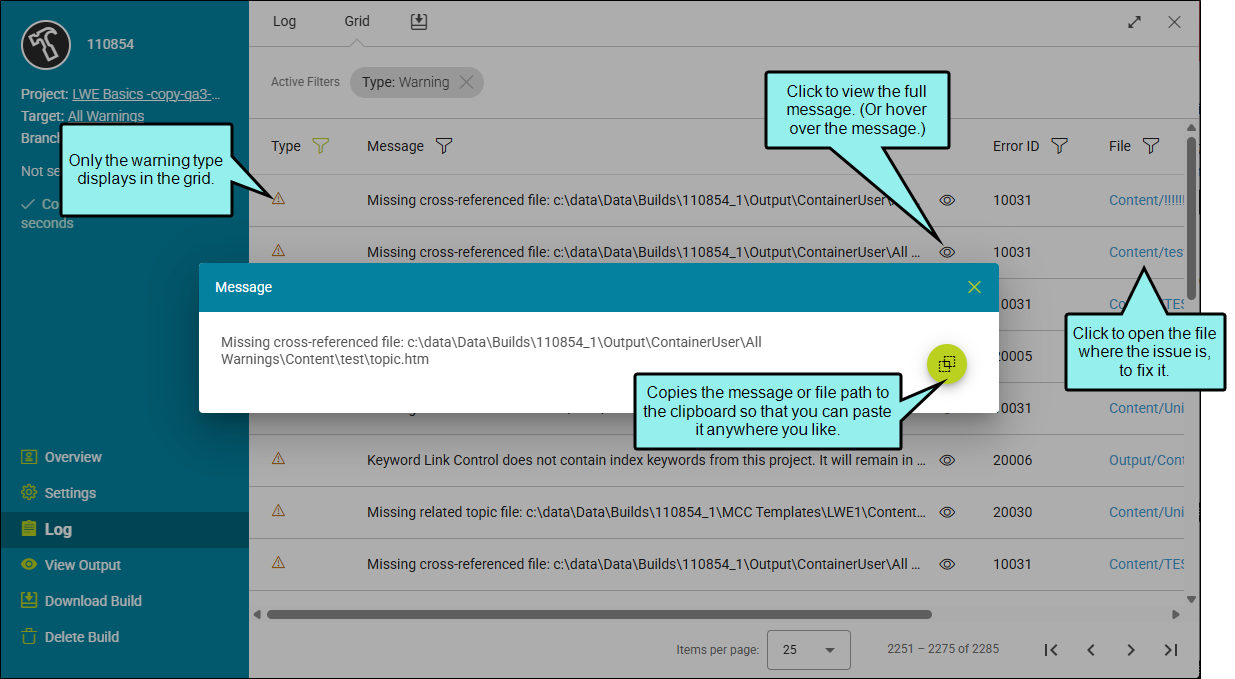
You click through the warning messages. From here you can troubleshoot issues and do your best to fix problems with the build. In this case, you focus on a warning telling you that a topic is missing a cross-referenced file.
What’s Noteworthy?
Important Use caution when ignoring compiler warnings. Only ignore warnings that you are certain you do not need to receive.
Note If you do not want to see a particular warning in a future build, you can ignore warnings when you generate a target using Flare Desktop. This is done in the Options dialog, or in the Target Editor. Then, you must push your changes to Flare Online.
Note The Download Log option saves the log (.mclog) file to your computer. You can then open it in a text editor such as Notepad++.
Note To find an item in the Grid view, click CTRL+F. If you type a keyword, it locates instances of it in the appearing pane only.

