Creating Publications
Building and publishing output are closely related in that a publication is an instance of a build being published to a destination (and you must select a destination in the build).
There are different ways to create a publication. Do one of the following:
-
Publish Existing Build From the Publications grid, when you create a publication you can select a specific build and destinations.
-
Build and Publish From the Builds grid, when you create a build you can select build settings and destinations. This is also applicable to scheduling builds.
[Menu Proxy — Headings — Online — Depth3 ]
Permission Required?
For this activity, you must have the following permission to control and allow access to external servers:

A user with Administrator rights is expected to have the Manage Integrations permission to integrate a connector with a Flare Online license.
For this activity, you must have the following permission:

Users associated with a project only need the Publish Builds permission for publishing output.
For more information about permissions, see Setting User Permissions or Setting Team Permissions.
How to Create a Publication
-
Select Projects on the left side of the interface, then click a project name to open it.
-
At the top of the page, click Output.
-
Select the Publications tab.
-
In the upper-right, click Create Publication.

The New Publication wizard opens.
-
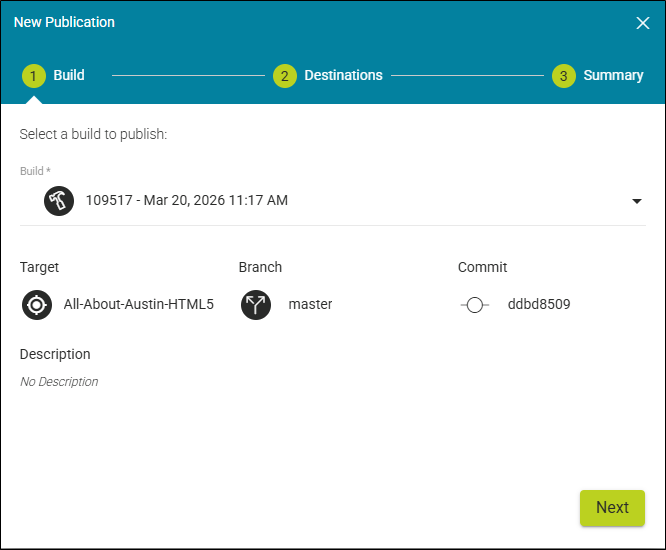
From the Build drop-down, select the appropriate build (i.e., Build, Target, Branch).
-
Click Next.
-
From the Destinations drop-down, select the destination(s) where you want the publication to go to for your host. If the destination drop-down is empty, you need to add one.
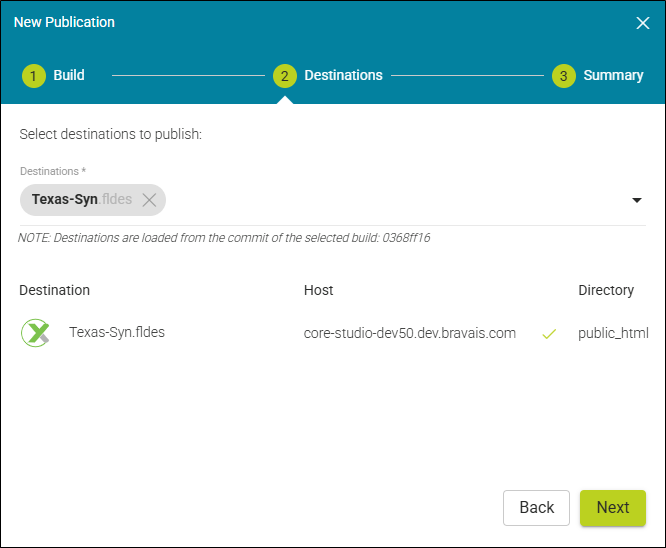
The software will indicate either a found connector or an invalid connector. If a connector is not found you will not be able to advance in the wizard.
Note The New Publication wizard is using the destination file from when it was originally built. This means that if you change your destination settings, you will need to rebuild before you republish.
-
Click Next.
-
View a summary of the publication, and click Publish. (Or click Back.)
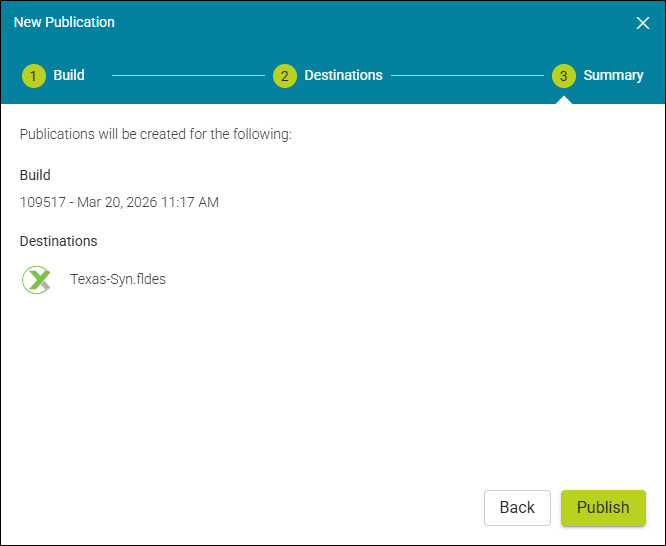
The Publication grid gains focus with the publish process in progress.
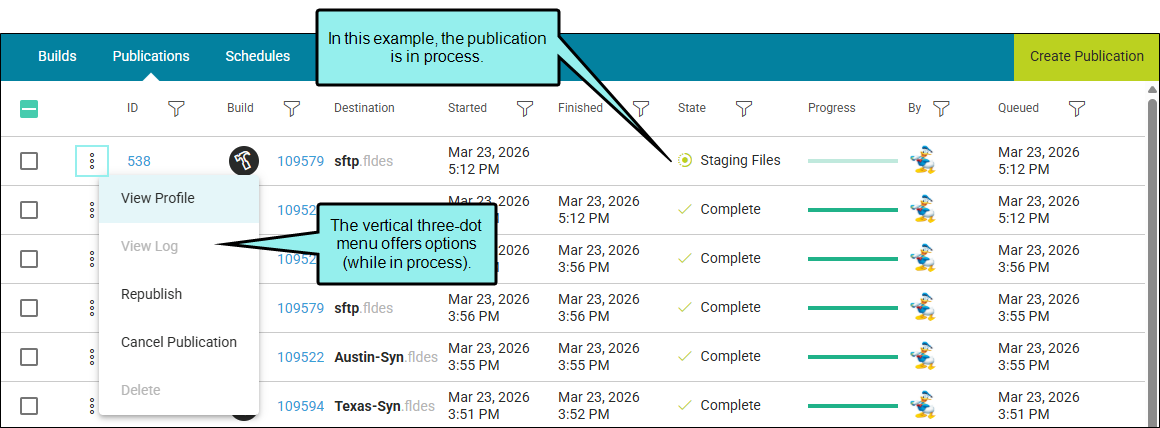
Publications Grid
Use the Publications grid as a central point to manage your publications.
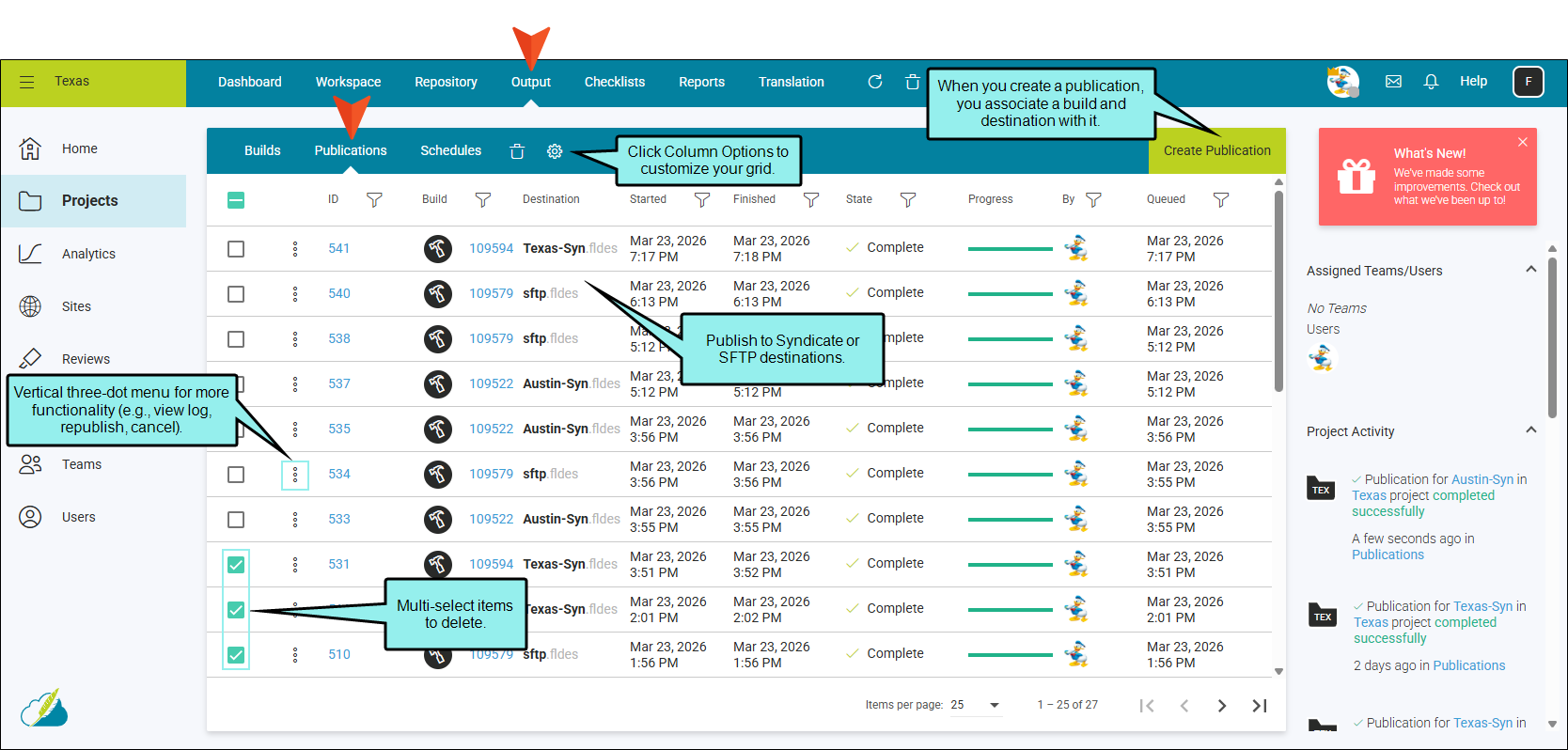
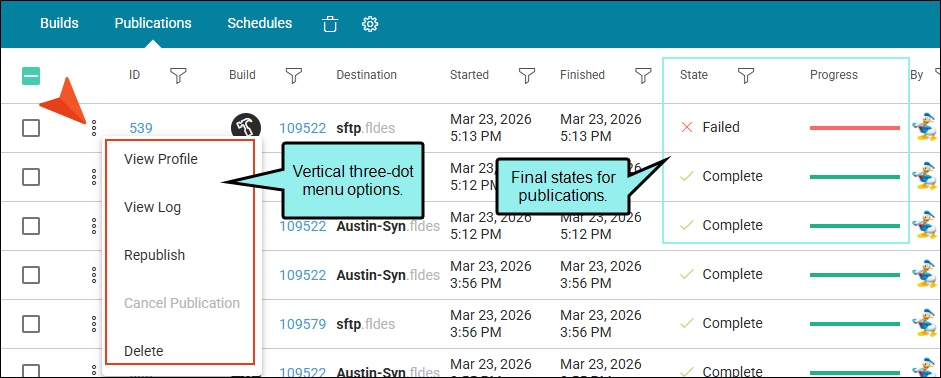
The final state of the publishing process shows Complete or Failed.
Complete
-
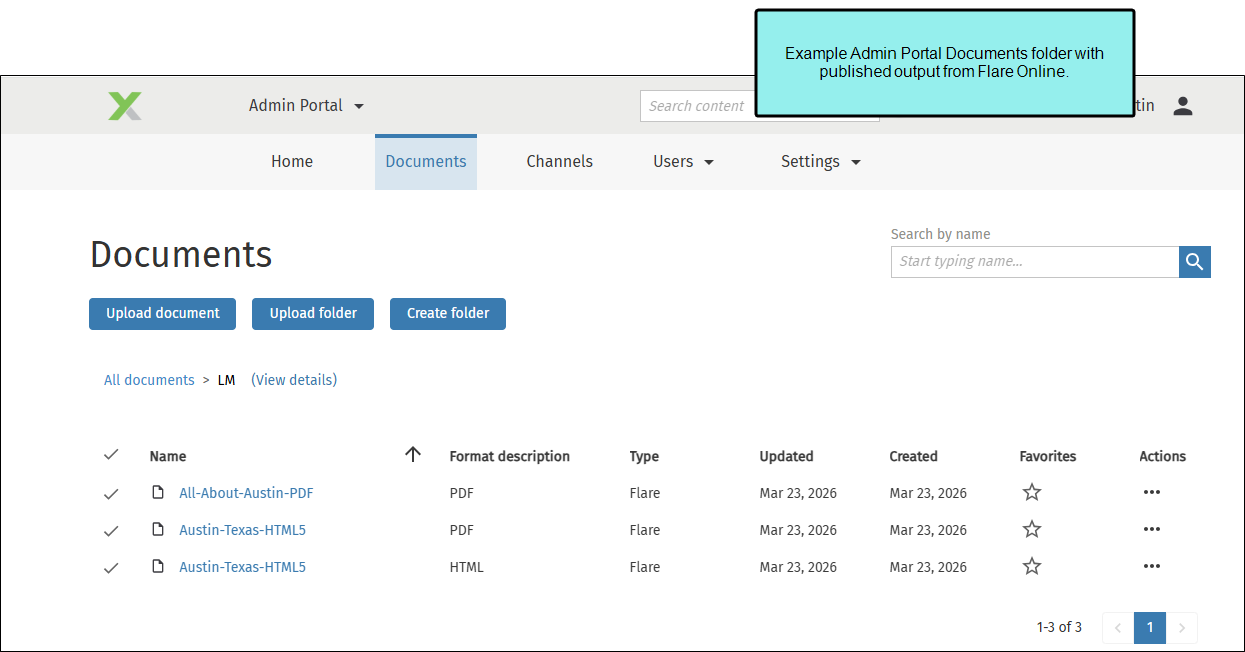
If a Syndicate publish is successful, you can open your Syndicate Admin Portal and view your document.
-
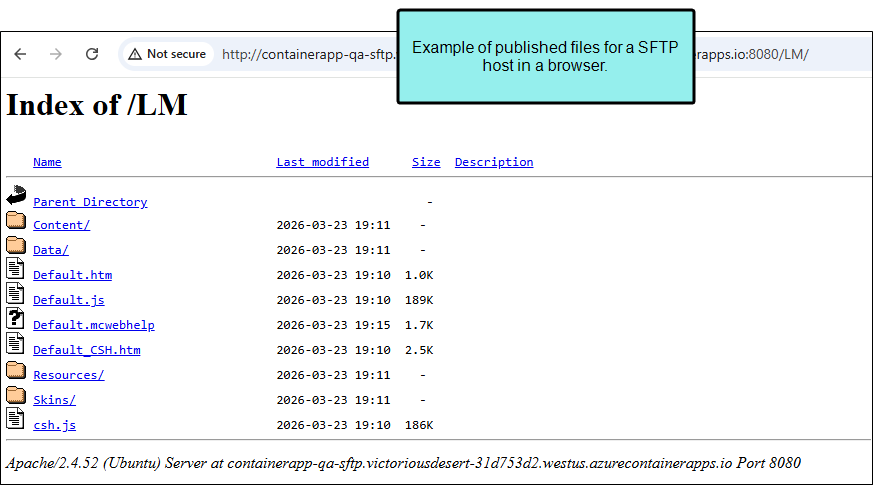
If an SFTP publish is successful, you can view files for the Connector URL (Host Name) in a browser, and click content files. Or you can view items in a client utility facilitating the file transfer (e.g., FileZilla).
Failed
In the Publications grid you can click the vertical three-dot menu. From here, you can do various things such as view its profile, view log, republish, or delete it. If your publication fails, click View Log for a dialog that shows messages, warnings, and errors, to help identify what happened to it.