Adding Host Mapped Domains
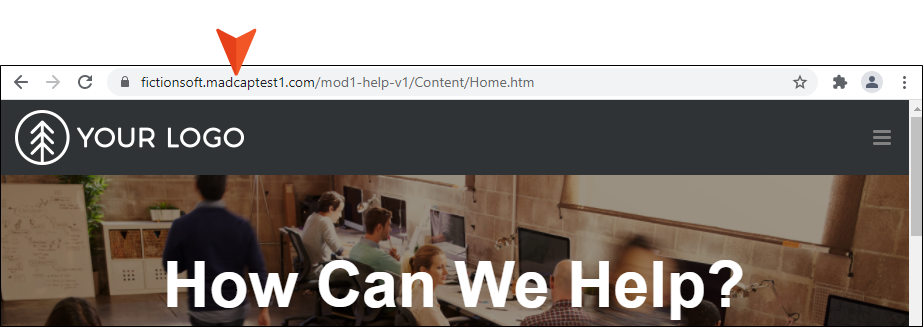
If you want to map to your company's own host domain instead of using the default Flare Online domain, you can do so by creating a Canonical Name (CNAME). You can add as many host mapped domains as you need. The URL to give end users will be your company’s domain.
Note If you have a host mapped domain connection, you can keep using your current mapping.
Host mapped domains referencing v1 are using the older method of binding. Those that reference v2 are using the newer or upgraded method of binding. Both are valid and secure.
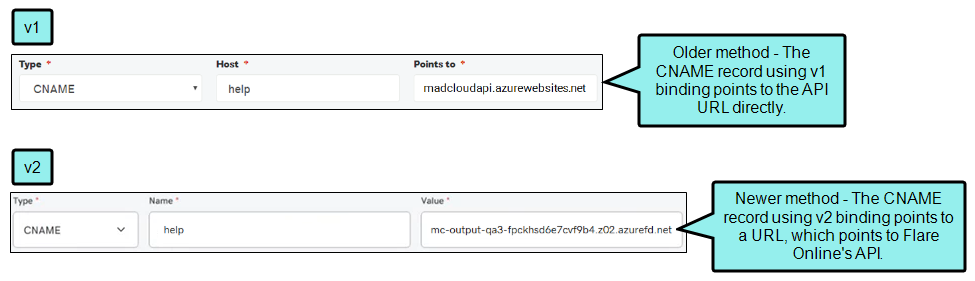
To upgrade, you will need to delete your existing host mapped domain and recreate it. This includes binding the host mapped domain in Flare Online, and setting up the CNAME record and the text (TXT) record in your Domain Name System (DNS) registrar's website.
[Menu Proxy — Headings — Online — Depth3 ]
Permission Required?
For this activity, you must have the following permission setting:

For more information about permissions, see Setting User Permissions or Setting Team Permissions.
How to Add a Host Mapped Domain
The main parts to the process involve creating your custom domain, and copying the CNAME value and validation token to your DNS registrar’s website (e.g., GoDaddy). In most cases, that is all that is required, and the system takes care of the domain binding automatically. The following guides you through the steps.
-
On the left side of the interface, click Sites.
-
Select the URLs tab.
-
In the toolbar click
 .
. -
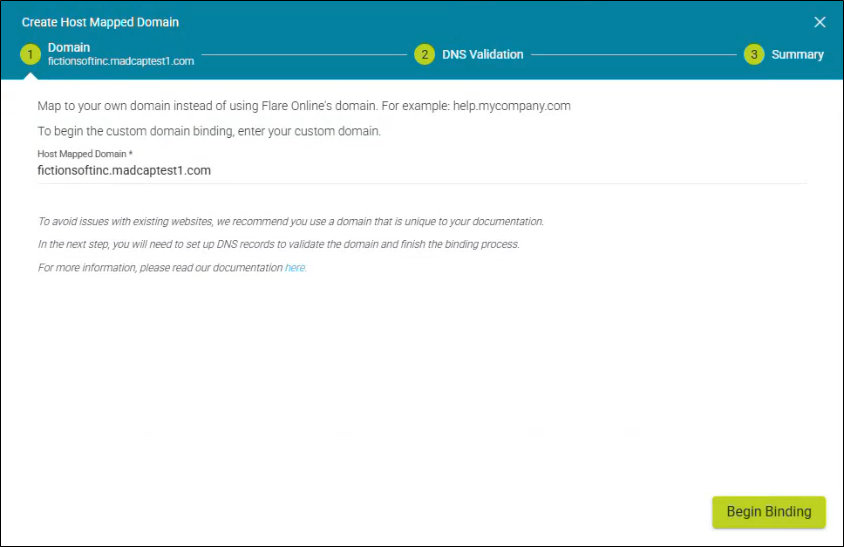
The Create Host Mapped Domain wizard displays. Enter your custom domain name (e.g., fictionsoftinc.madcaptest1.com) and click Begin Binding. This creates a record in the database and the domain in Azure Front Door. It closes the wizard and initiates the Host Mapped Domain profile to show the domain creation is in progress. The system checks for 1) if the domain name is already being used in the database, and 2) if the domain string is valid.
-
In the Host Mapped Domain profile, the DNS validation states change from Submitting to Pending. When the binding finishes, the profile screen updates to a table showing a CNAME and a validation token (i.e., TXT type) that you need to enter in your DNS registrar’s website. Use
 to copy the values into the DNS provider.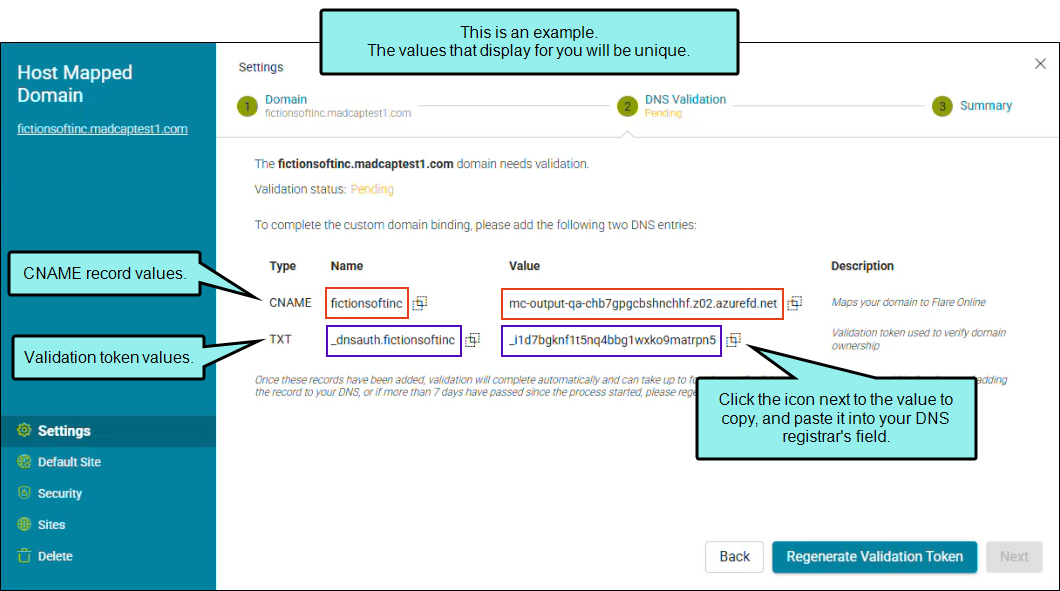
Note The Host Mapped Domain profile is opened automatically after you start the binding from the wizard. If it happens to be closed and does not display, you can open it at anytime.
-
Open your DNS registrar's website, add a CNAME record. Be sure to save the record.
The CNAME will point to the URL, and URL will point to Flare Online's API.
Example If GoDaddy is your DNS provider, you need to select the CNAME type, enter the CNAME name (i.e., subdomain or alias), and enter the mapped domain URL from Flare Online. The record might look like this:
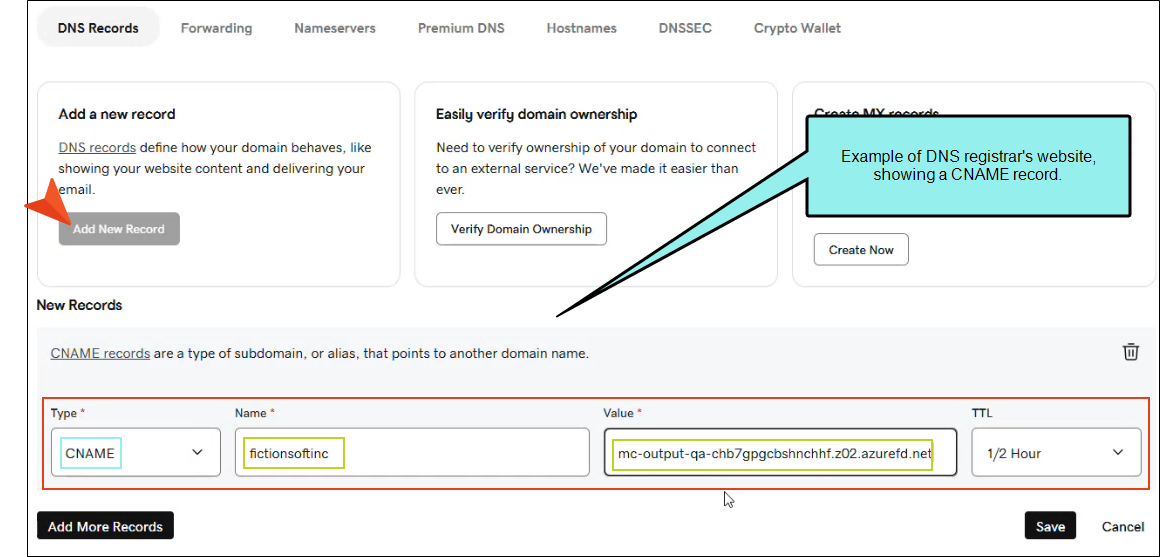
Note You might need to involve an individual in your company, such as a system administrator, to set up the CNAME. For details on creating a CNAME, please refer to the registrar’s website documentation.
Note If the domain does not validate successfully, make sure the CNAME is set up correctly with the registrar. If your DNS is using Certification Authority Authorization (CAA) records, ensure digicert.com is added to the CAA record.
Note When entering a host mapped domain, you might see an error if the name is too long. To avoid this problem, the entire domain including a subdomain must be 63 characters or fewer.
-
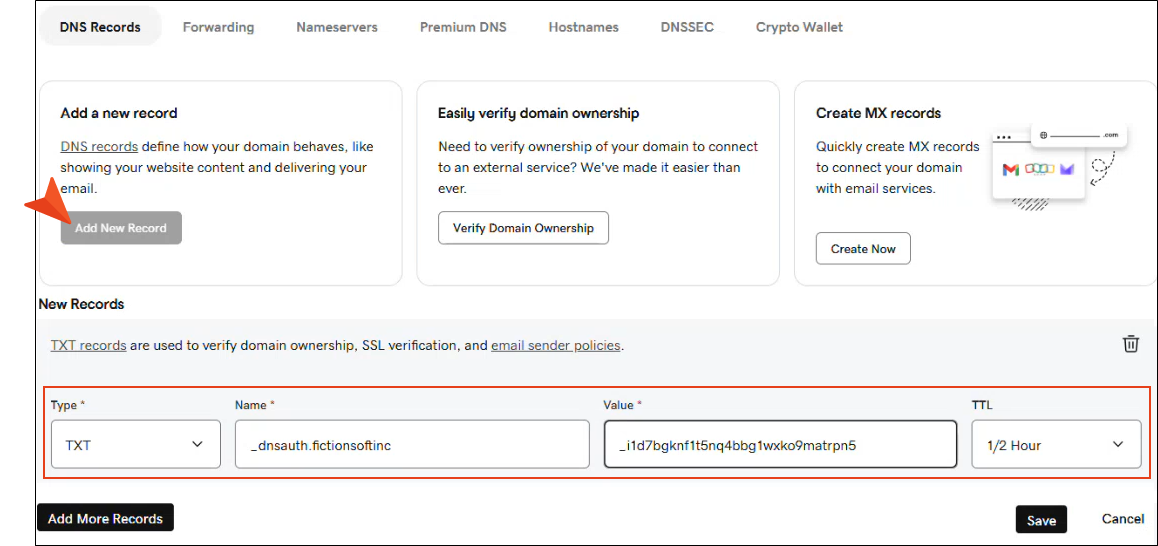
In the DNS registrar's website, add a TXT record (i.e., validation token). Be sure to save the record.
Example If GoDaddy is your DNS provider, entering the TXT record might look like this:
-
Go back to the Host Mapped Domain profile. The DNS validation displays as Pending until it is approved. At this point Flare Online, your DNS provider and Azure Front Door are working together to establish a secure connection.
Note The validation process is automatic and runs in the background. Since the process is dependent on Azure Front Door, exactly how long it takes is unknown. It could take anywhere from 10 minutes to 24 hours. You can close the window and check for completion later, either in the profile or in the grid. (You might need to refresh the grid to see it.)
Note Azure Front Door performs checks for a valid TXT record with the following timing intervals (based on when the TXT record is established and when it is entered into the DNS registrar's website).
-
Interval 1—Every minute for the first 15 minutes
-
Interval 2—Every five minutes for an hour
-
Interval 3—Every 15 minutes for four hours
-
Interval 4—Every hour for a day
-
Interval 5—Every four hours for a week
The above interval time results are approximate because they depend on Microsoft Azure services.
Once the records are mapped, the validation is completed automatically. The CNAME will map to a valid site, and the certificate generated from this process secures the site.
Note The system supports MadCap-generated SSL certificates when creating new CNAMEs. You cannot bind Custom SSL (i.e., PFX) certificates.
-
-
(Optional) From the Host Mapped Domain profile, you can click the Regenerate Validation Token button. If the process is in a state other than "approved," you can use this option to regenerate the validation token. Anytime the token is regenerated you need to update the TXT record with the new value.
Note If validation is not completed within 24 hours of adding the validation records to your DNS provider, or if more than seven days have passed since the validation process started, it has expired. Regenerate the validation token and retry.
Note If you click Regenerate Validation Token, you must update your DNS with the newly created token. The old token is no longer valid for binding. During this process, Azure Front Door performs checks for a valid TXT record.
-
When the validation is complete, your domain displays in the profile as bound.
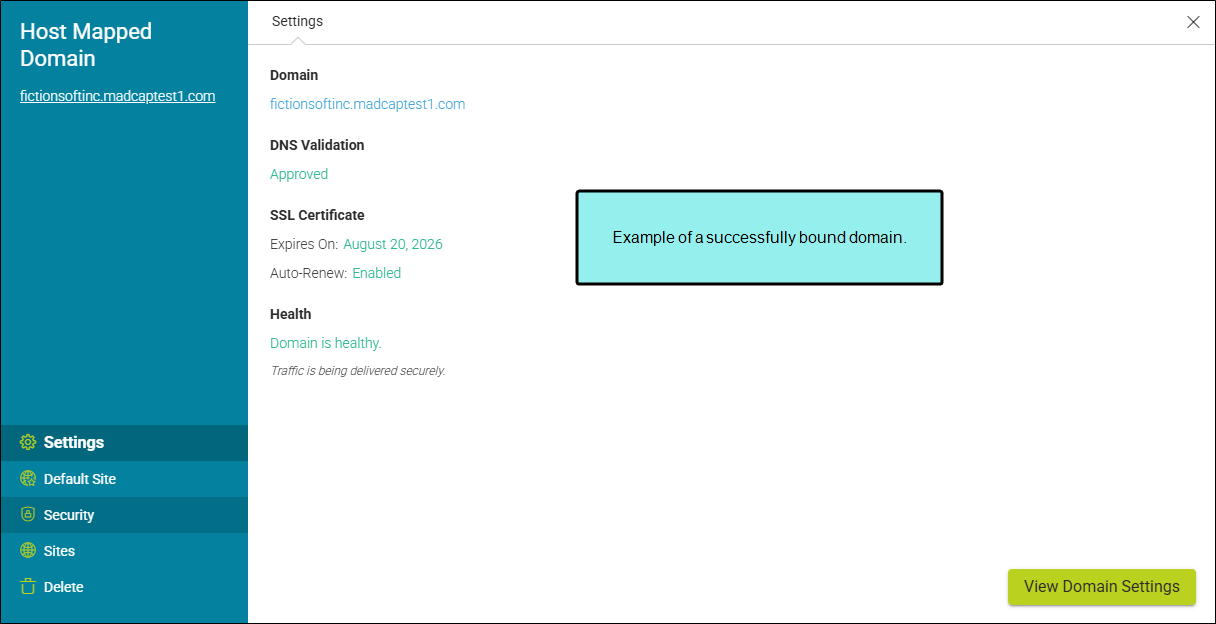
Note Keep in mind the validation certificate is renewed every six months. Once the connection is established, the renewal process happens automatically unless there are changes to the CNAME, TXT, or CAA records in your DNS.
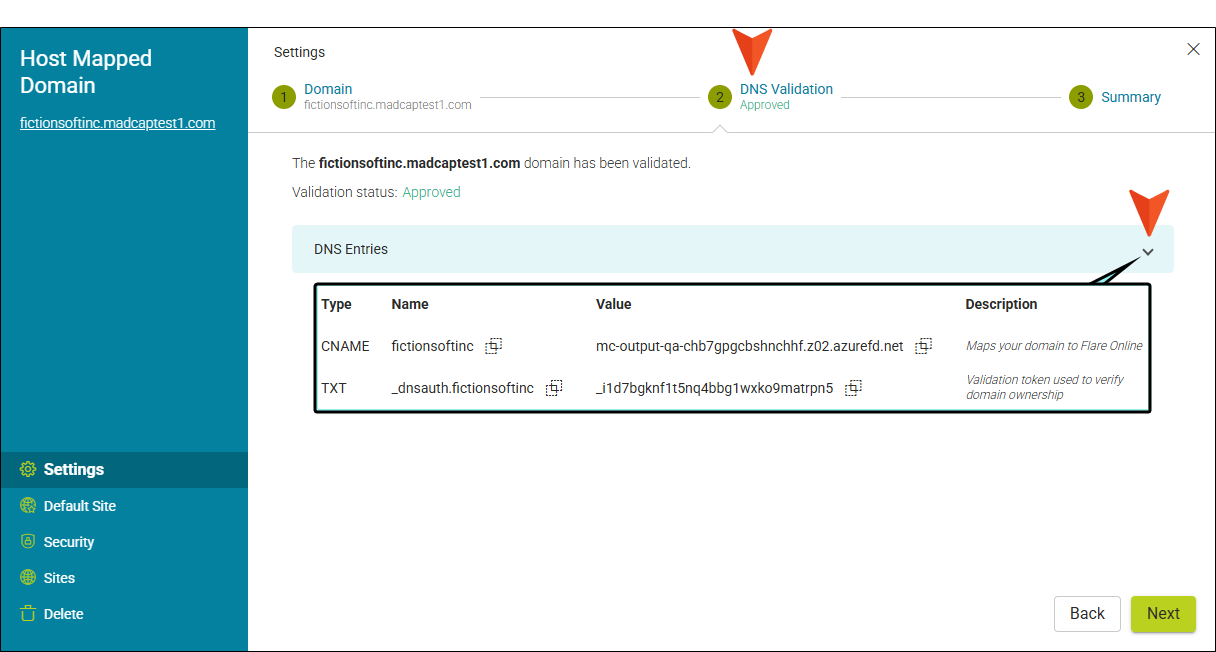
You can click View Domain Settings for a summary of the binding and go through previous "wizard" screens.
For example, you can click the DNS Validation at the top to review the approved validation. Click the drop-down to view your DNS Entries.
Note The URLs grid also reveals domain details. Click  for column options to display in the grid. For example, if you select Health, that column shows Healthy or Unhealthy. Healthy means that traffic is being delivered securely. Unhealthy means something is amiss. If you hover over the item, popup text appears to indicate why (e.g., no such host is known, the SSL connection could not be established).

Note If you have an older URL that you need to continue to use in order to maintain consistency with your company and prevent older links from breaking, you can create a redirect from that URL to your new domain. Ask the web administrator in your company for assistance with this.
CNAME and CDN
The CNAME feature uses a Content Delivery Network (CDN) service.
-
When you create a CNAME host map URL in Flare Online, it uses a global CDN automatically. Domains mapped using the default Flare Online “mcoutput” URL will not use the CDN.
-
Anytime you build or update a site associated with the CNAME host map URL, it will invalidate and purge the cache allowing the new content to be delivered to the CDN.
-
Only public sites can make use of CDN.
How to Add a Default Site
You can select a site to redirect to when the root domain is visited.
- On the left side of the interface, click Sites.
- Select the URLs tab.
- Click
 next to the domain you want to edit and select Edit.
 -
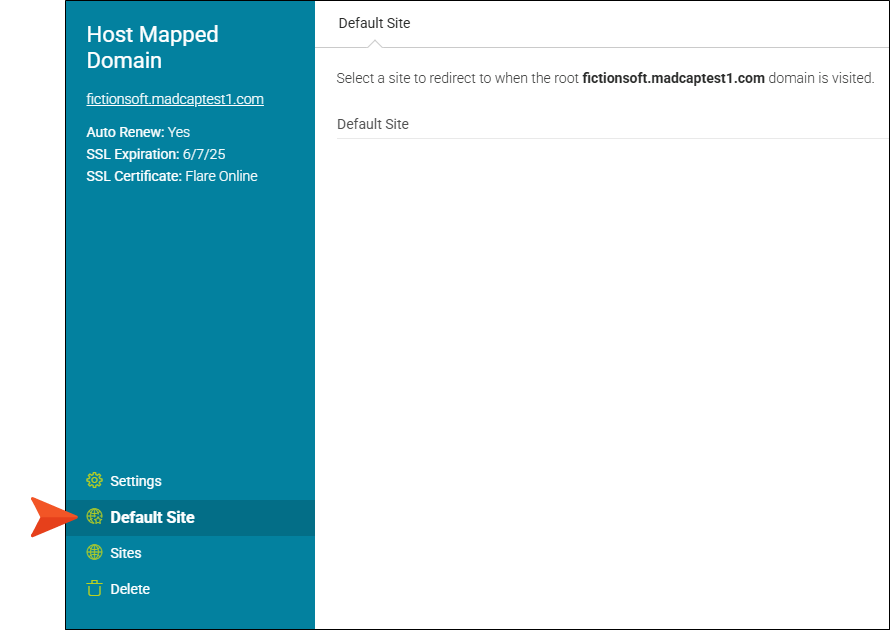
From the Host Mapped Domain wizard, select Default Site.
-
From the Default Site drop-down, select a site.
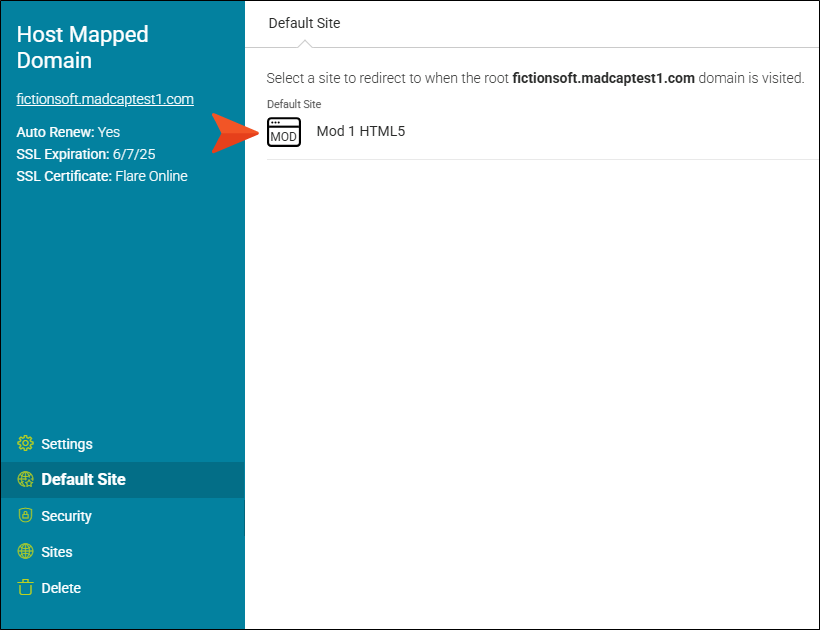
Note Make sure the site you select is also associated with a custom domain.
- Click Save.
-
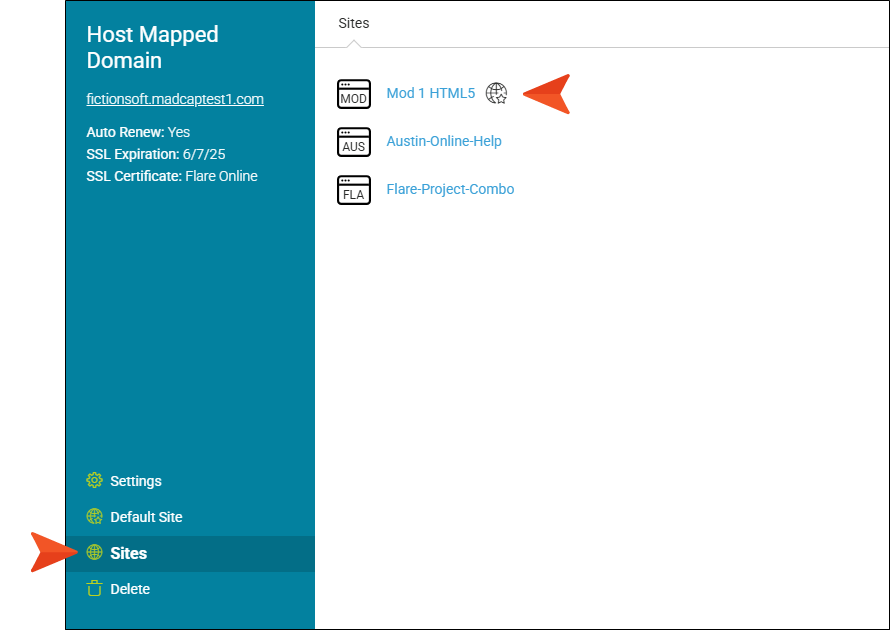
(Optional) You can quickly see which sites are associated to the host mapped domain by clicking Sites. The wizard lists the sites. If a site is set as the current default site, it is indicated as such by a globe/star icon.
Example If you don't set a default site, visiting a live URL root domain can result in a "404, page not found" error.
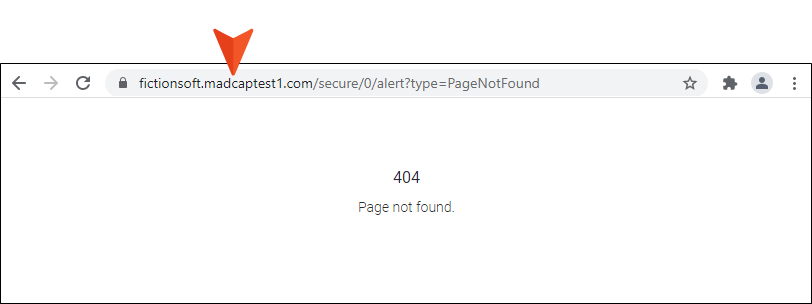
However, if you do set a default site, and you type the root domain into the browser's URL, it redirects to the assigned default site.