Setting Logout Behavior
You can set the single logout behavior at the user level if single sign-on is enabled and the administrator allows for it.
[Menu Proxy — Headings — Online — Depth3 ]
Permission Required?
There is no special permission needed for this. However, the following must be in place:
-
The Flare Online license must be enabled for SSO.
-
At the license level, your administrator must select Let each user decide.
How to Set the Logout Behavior - User Level
-
At the top of Flare Online, click your avatar or name.
-
On the left side of the profile, make sure Settings is selected.
-
At the bottom, enable or disable Log out of single sign-on identity provider when logging out of Flare Online.
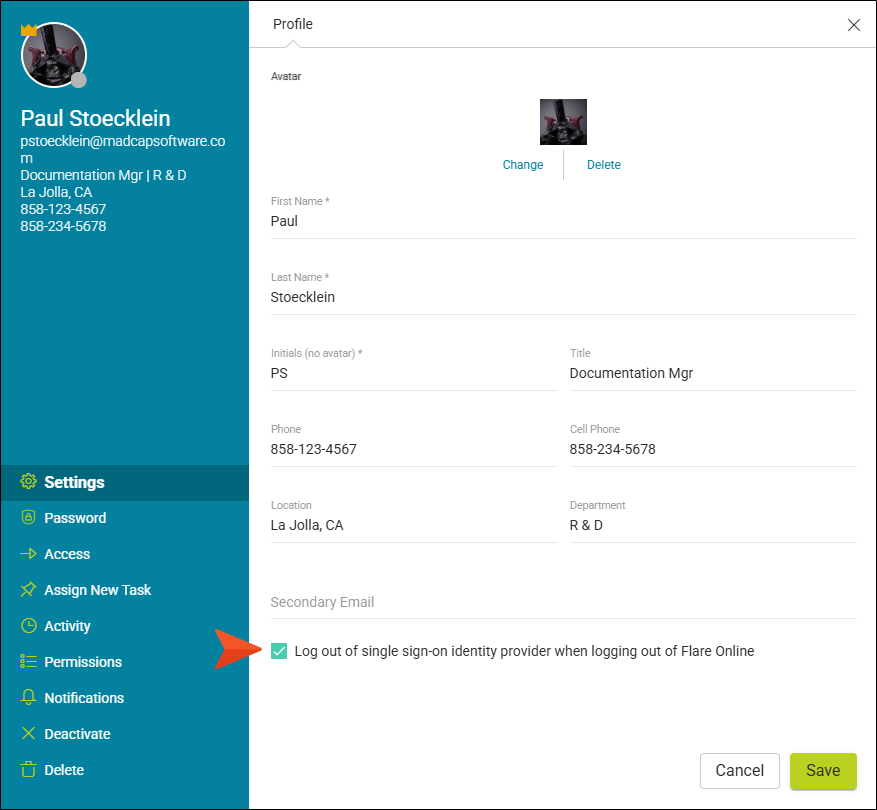
If the option is enabled, you will be logged out of Flare Online and logged out of the IdP.
If the option is disabled, you will be logged out of Flare Online but will remain logged into the IdP.
-
Click Save.
What’s Noteworthy?
Note If your administrator set the Single Logout Settings at the license level to either Always or Never, then this option is disabled in your profile.

Note If single sign-on is not turned on, you cannot see the single logout check box in your profile, and the single logout settings in License Settings are disabled.
Note Without enabling single logout, closing out of one application leaves any other connected sessions open.
