Single Logout Settings
Users with appropriate permissions (e.g., license administrators) can configure or change settings for single logout (SLO) actions. The logout behavior can stay at the license level for the administrator to manage, or the administrator can allow a user to select a preferred logout behavior at the user level.
[Menu Proxy — Headings — Online — Depth3 ]
Permission Required?
For this activity, you must have the following permission setting:

For more information about permissions, see Setting User Permissions or Setting Team Permissions.
How to Set Single Logout Options - License Level
The administrator can set this up.
-
In the upper-right of Flare Online, click your license avatar (or first letter of your license), and select License Settings.
-
On the left of the profile, select Single Sign-On, then click Configure or Change Settings.
-
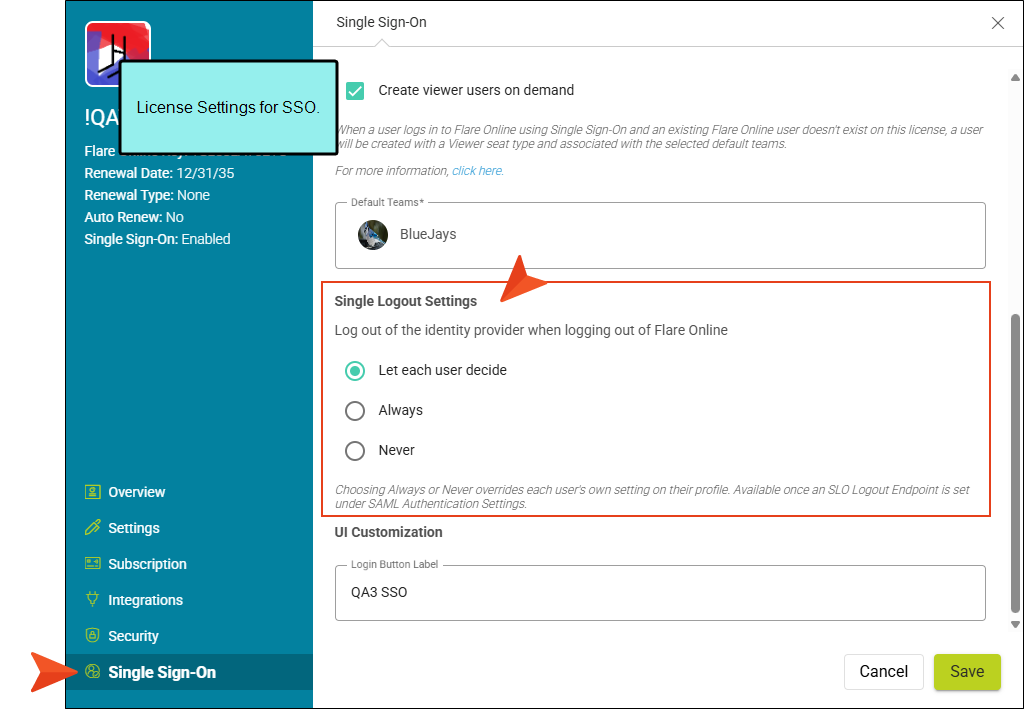
With SSO configured and enabled, select a logout action for users on the license. The Single Logout Settings are:
-
Let each user decide The administrator allows each user to decide individual logout preferences. In other words, the logout behavior is determined at the user level. The user profile includes the check box Log out of single sign-on identity provider when logging out of Flare Online. If you select to enable this option, you will be logged out of Flare Online and the IdP. If you select to disable this option, you will be logged out of Flare Online but will remain logged into the IdP.
-
Always The administrator is requiring that every time a user logs out of Flare Online, the user is also logged out of the IdP. Use this option for increased security. Users do not remain logged into the IdP even after logging out of the application. The administrator manages this option at the license level, and it overrides an individual’s settings in the user profile.
-
Never When a user logs out of Flare Online, the user remains logged into the IdP. The administrator manages this option at the license level, and it overrides an individual’s settings in the user profile.
-
-
Click Save.
What’s Noteworthy?
Example Larger organizations with users who access shared systems might decide to require users on a license to sign out of the IdP when logging out of Flare Online. This can provide greater security because users do not remain logged into the IdP even after logging out of the application. With one click, users can close all apps and connections using a certain IdP.
Note The SLO option is supported only by some IdPs, specifically those that only use the usernameID in the call to the endpoints. Check with your IT department to see if your IdP supports SLO.
