 Outputs Supported


[Menu Proxy — Headings — Online — Depth3 ]
Permission Required?
Editing content and project files is an activity available to users with the Author status. By default, users with Author status have the following permissions set:
-

If this is deselected, then viewing files in a read-only mode is allowed. On the left side of the page, the Files vertical three-dot menu is not available.
-

If this is deselected, the XHTML in the Code view is read-only.
Editing code is regarded as a capability for an advanced user. If not done properly, the code can become malformed quickly. Administrators can prevent users from editing the code by deselecting the Edit Code permission.
For more information about permissions, see Setting User Permissions or Setting Team Permissions.
Benefits and Users
Flare Online's browser-based equation creation and editing is beneficial for many users.
-
Teams can produce detailed STEM (Science, Technology, Engineering, and Math) content where equations are a core part of the documentation experience.
-
Authors can insert new equations into topics or snippets while documenting a scientific or engineering concept.
-
Editors can update an existing formula to reflect a product, standards, or curriculum change.
-
A distributed documentation team can collaborate on technical content without relying on offline tools or a desktop-only equation workflow.
-
A reviewer can correct formatting or notation in an equation as part of a normal content review cycle.
-
A technical writer can maintain content with both text and equations in the same browser-based editing session.
How to Create and Insert an Equation
-
Open a project, and select the Workspace tab at the top.
-
On the left, navigate to a topic or snippet file. The file contents display on the right.
-
In the editor, place your cursor where you want to insert the equation.
-
From the editor's local toolbar, select
 and choose
  .
. -
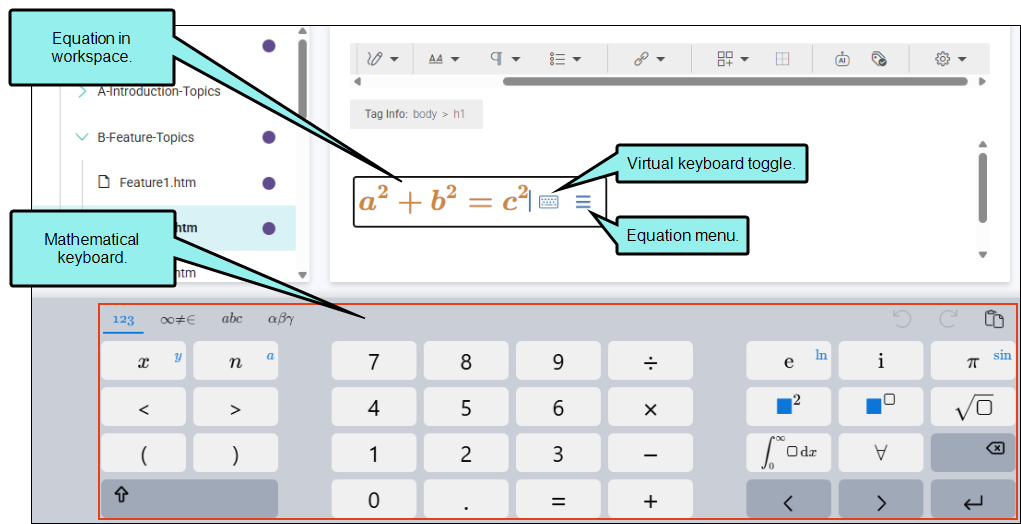
Use the rectangle and browser-based mathematical keyboard to create the equation. See Equation Content Rectangle and Keyboard.
How to Edit an Equation
-
Open a project, and select the Workspace tab at the top.
-
On the left, navigate to a topic or snippet file. The file contents display on the right.
-
In the editor, click the equation that you want to edit. From the popup, click
 . (You can also right-click the equation and from the menu select Edit Equation.)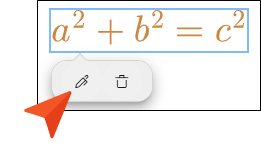
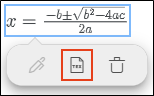
Note If an equation exists in a topic written in the MathML code-based format, you can convert it to the LaTeX format before editing. Click the equation and from the popup select Convert to LaTeX.
Alternatively, you can right-click the equation and from the menu select Convert to LaTeX.
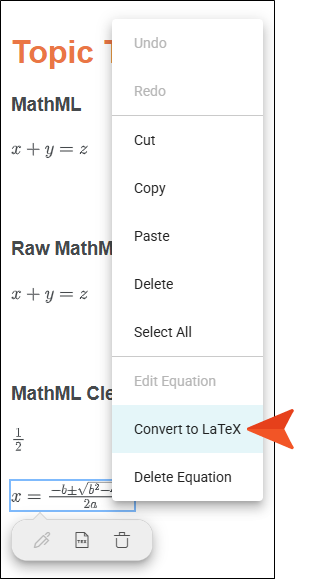
-
Use the rectangle and browser-based mathematical keyboard to create the equation. See Equation Content Rectangle and Keyboard.
Note Flare Online supports editing equations for the LaTeX and MathML format types. However, to edit the MathML equation, you need to convert it to the LaTeX format (which is easily done in the editor). Both types render in the output, and the format saved is determined automatically by where the equation originated from.
Equation Content Rectangle and Keyboard
When creating a new equation or editing an existing one, you can type directly in the rectangle that appears in the editor. You can also use the mathematical keyboard that displays at the bottom of the workspace. (Click the small keyboard toggle inside the rectangle to show or hide the keyboard at the bottom of the workspace.)
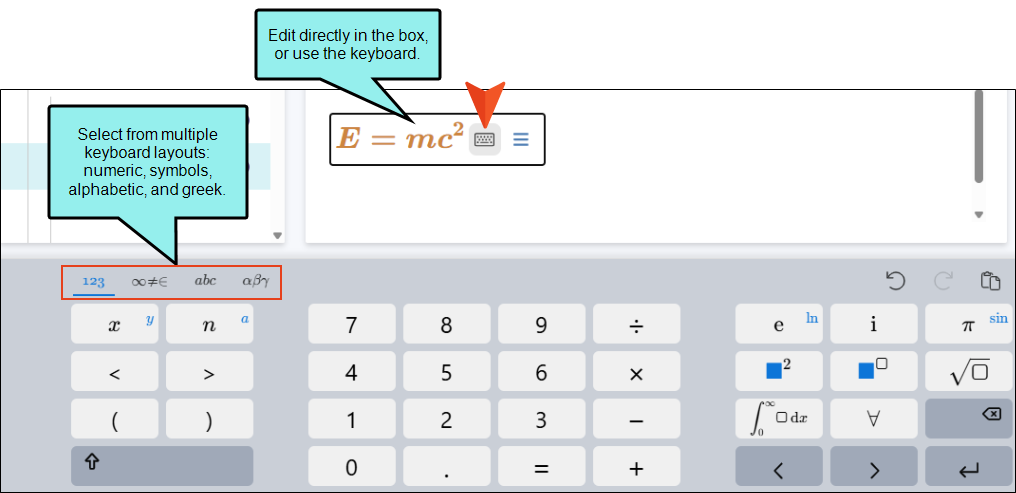
Once the rectangle becomes wide enough, you can click the menu icon to choose various options. Some are equation related, such as the insertion of a matrix, absolute value, derivative, or mode. Others are more basic content options, such as formatting, cut, copy, and paste.
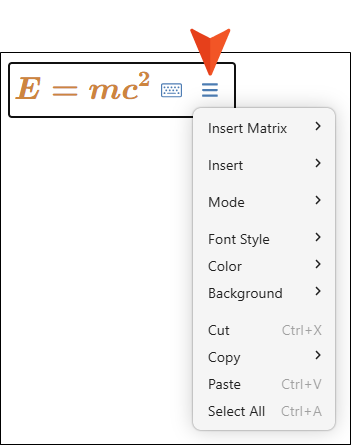
Note The equation editor includes typing modes, Math, Text, and LaTeX, which are simply different ways of entering content into the editor.
How to Delete an Equation
-
Open a project, and select the Workspace tab at the top.
-
On the left, navigate to a topic or snippet file. The file contents display on the right.
-
In the editor, click the equation that you want to remove. From the popup, click
 . (You can also right-click the equation and from the menu select Delete Equation.)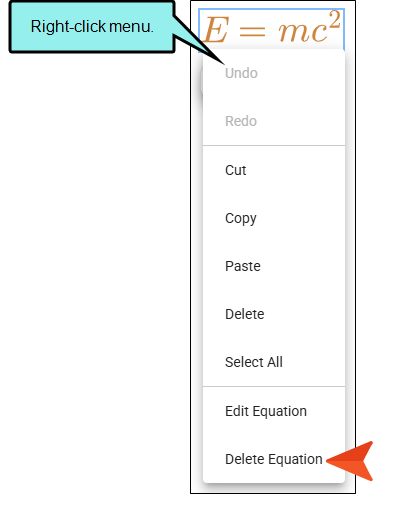
What’s Noteworthy?
Note For more about editing equations in the Review Editor, see Equations for Reviews.
