Opening the Build Profile Dialog
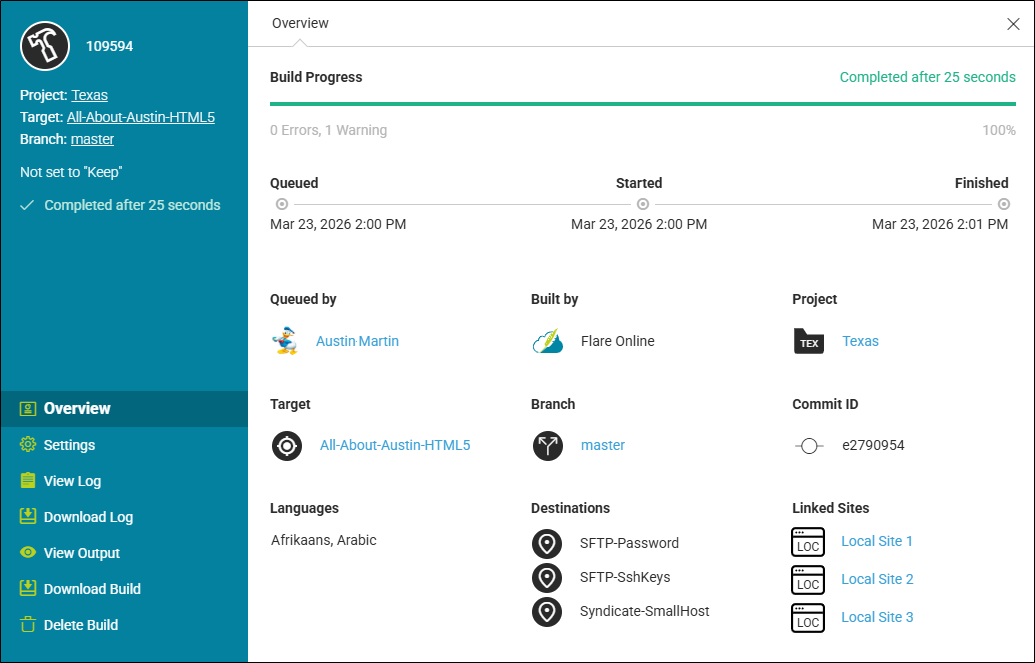
On the Output page, a column displays an auto-generated ID for each build. When you click this ID, the Build Profile dialog opens showing detailed information about a particular build.

[Menu Proxy — Headings — Online — Depth3 ]
Permission Required?
To open the project in Flare Online and access the Build Profile dialog, you must be associated with the project. However, depending on your permissions, you might see different section links on the left side of the dialog.
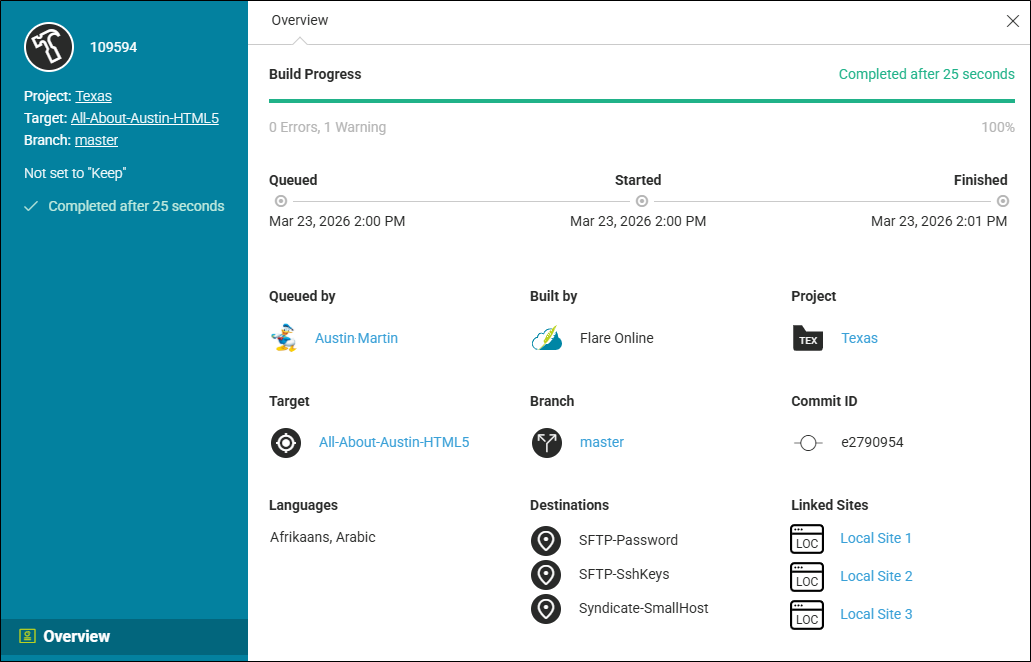
If you do not have any permissions for builds, the dialog will look like this (with only the Overview section):
Sections
Following are the possible sections that you might see. You can use these sections to view different information and perform various activities (as an alternative to using toolbar buttons above the Builds grid).
-
Overview Displays the following information:
-
Build timeline and progress, including its level of success
-
Individual who generated it
-
Project
-
Target
-
Branch
-
Commit ID
-
Languages
-
Destinations
-
Linked sites
-
-
Settings
-
Add a project description. If used and selected, it displays in the grid and profile.
-
Lets you mark successful builds as "keep," or remove this setting. You might set a build to "keep" to avoid accidentally deleting it, perhaps with the intention of rolling back to it at some point (i.e., setting the site associated with that build to "live"). You cannot change a build's "keep" state while it is linked to a "live" site.
-
A warning displays if a build does not support case-insensitive paths. This only shows for older builds, as all newer builds support different combinations of case matchings in file paths. To add case-insensitive paths support, create a new build.
-
-
Log Displays the log detailing info, events (messages), warnings, and errors for the build. The log area includes a Log tab, Grid tab, Download, Find, and Settings button. The Log view shows all the running information about the build, and you can optionally customize the interface with basic settings. The Grid view lets you to filter the log. You can also download the log (.mclog) file to your computer and open it in a text editor (e.g., Notepad++).
-
View Output Opens the output for the build.
-
Download Build Downloads the output files for the build into a ZIP file.
-
Delete Build Lets you remove the build from the grid permanently. You cannot delete builds that are set to "keep" or associated with a site.

